Node running out of space?
Ever had your node run out of disk space? It’s happened to me, and I’ve tried a couple of things, so I thought I’d share both the good and…
Ever had your node run out of disk space? It’s happened to me, and I’ve tried a couple of things, so I thought I’d share both the good and the bad.
The bad :-(
So, there was this one time I asked ChatGPT to help me extend the space of an existing partition. Seemed simple enough, right? Well, it turned into a complete nightmare. The partition got corrupted, and to this day, I still have no clue what went wrong. All I know is that it didn’t work for me, and I’m never doing that again.
The god :-)
But here’s the good part: I later found a better way — adding a new disk image and then merging it with the old one. That actually worked for me, with no drama or headaches. So, if you ever need more space, I’d recommend going with that approach — it saved me a lot of trouble.
Let ‘s jump into it.
1. Add new storage to existing VM
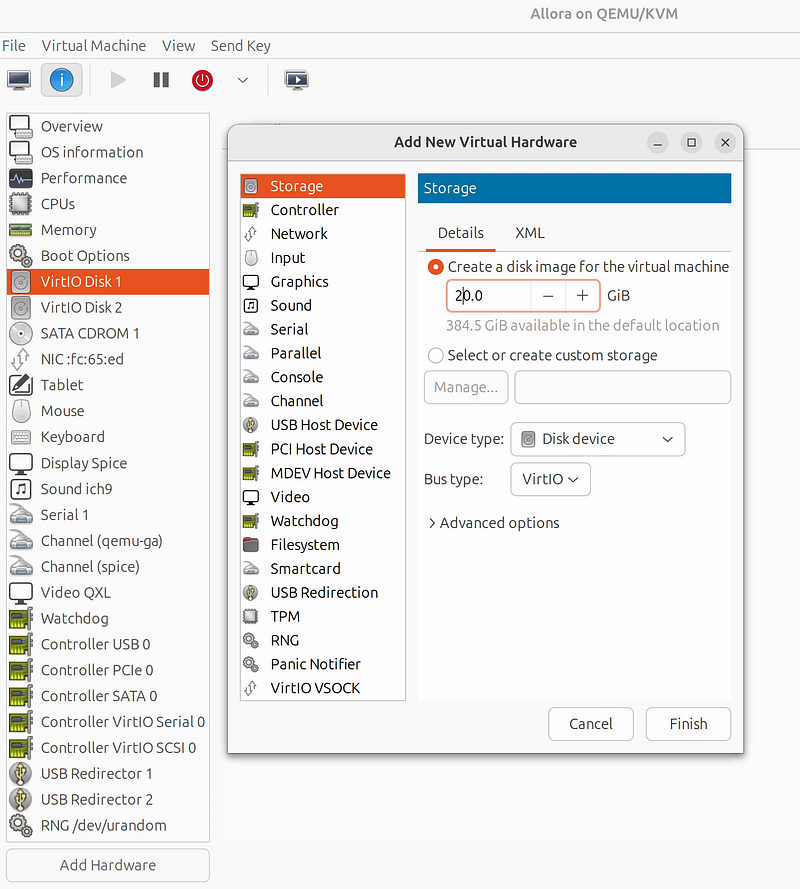
It’s pretty straightforward: just click “Add New Hardware,” and a new window will pop up where you can specify the new disk size you need.
2. Merge the New Disk into the Existing Volume Group
2.1 check you new disk
After adding the disk, boot up your VM and use the following command to check your new disk:
lsblkYou should get something like this.
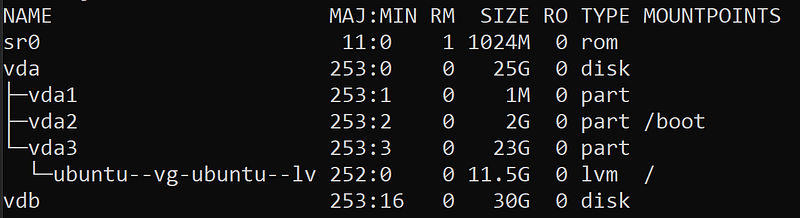
In my case, the new volume showed up as vdb since I created a new disk with a size of 30GB.
2.2 Add the New Disk to the LVM:
Create a physical volume:
sudo pvcreate /dev/vdbAdd it to your existing volume group:
sudo vgextend ubuntu-vg /dev/vdb2.3 Extend the Logical Volume:
Extend your logical volume to use the new space:
sudo lvextend -l +100%FREE /dev/ubuntu-vg/ubuntu-lv2.4 Resize the file system
Finally, resize the filesystem to utilize the new space:
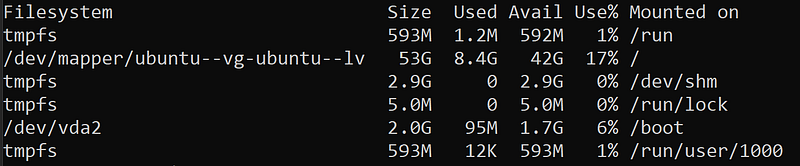
sudo resize2fs /dev/ubuntu-vg/ubuntu-lvAfter this step, you should be able to use your new disk space. To verify, use the command ‘df -h’. This will show you the available disk space. For me, it successfully added 30GB to the new volume, bringing the total to 53GB.
Before:
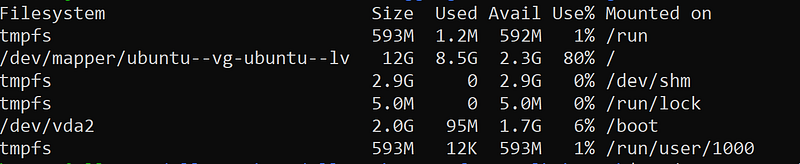
After:
Summary
That’s all for today. Let’s quickly summarize what we’ve done:
- Created a new disk in the guest VM
- Merged the new disk with the existing one
- Expanded the available space
This approach is quick and easy. Compared to the disk expansion method that failed, this was a breeze. I still remember spending an entire day trying to recover the disk, only to fail in the end.
Thank you for your reading. Have a nice day.